Google has rolled out a welcome update for iPhone and iPad users, and this can be a game-changer.
For those who have been thinking about switching from Apple's default Safari browser to Chrome, Google has finally given a solution: Chrome version 145 is introducing a guided "Safari import" feature. This makes transferring browsing data directly on iOS device much simpler, without needing for a Mac or PC as an intermediary.
For years, Apple's strict privacy and sandboxing rules have prevented third-party browsers like Chrome from directly pulling data from Safari.
What this means, anyone who wanted to move bookmarks, history, passwords, or other details often had to use workarounds, such as syncing through iCloud, exporting on a desktop, or manual methods that felt clunky.
But this new tool from Google significantly lowers those barriers.
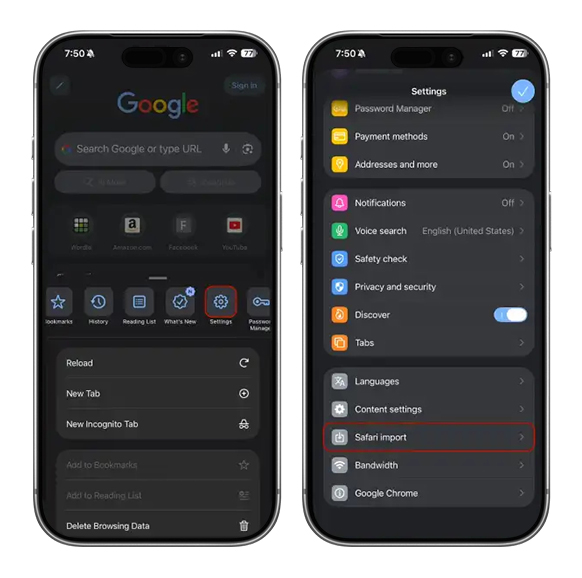
Here's the straightforward step-by-step flow:
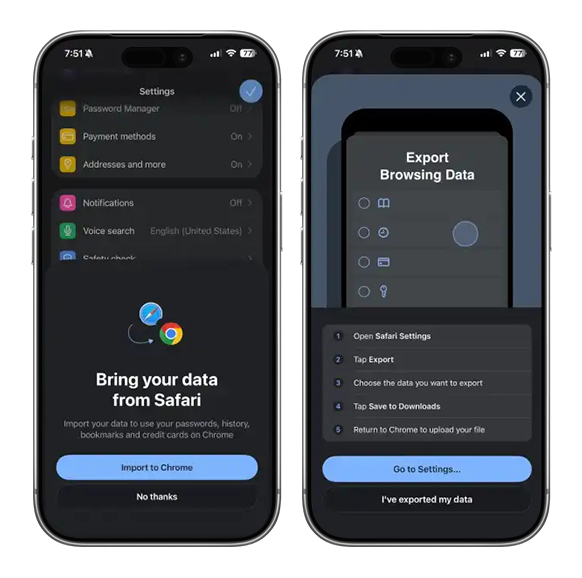
- Export Safari data: Head to the Settings app on the iPhone or iPad, Tap "Apps" (or directly to Safari in some iOS versions), Scroll to Safari, Under "History and Website Data," select "Export Browsing Data." Choose what to include (bookmarks, browsing history, saved passwords, and possibly credit cards or other items). This creates a ZIP file saved locally, often in the Downloads folder or iCloud Drive.
- Switch to Chrome: Open Google Chrome (ensure it's updated to version 145 or later). Go to Settings in Chrome, and look for the new "Safari import" option (it may appear at the bottom of the list).
- Select and review: Tap it, then choose the ZIP file that has been exported. Chrome scans the contents, shows a preview of what's detected (bookmarks, history, passwords, etc.), and lets users confirm what to transfer. The imported data gets saved to users' Google Account automatically, syncing across all of users' devices for seamless access.
- Clean up: For security, delete the ZIP file right after the import, since it can contain sensitive information like passwords.
This guided walkthrough reduces friction and helps avoid common mistakes. Google even includes reminders about data security and the fact that imported items will be stored in users' Google Account.
The feature is privacy-conscious by design: no direct app-to-app access, just a user-initiated file transfer.
Switching browsers on iOS has historically favored Safari due to its deep integration with iCloud, Keychain, and system features.
But for users who prefer Chrome's interface, sync ecosystem (especially if you use Android or Windows too), extensions, or Google's search and AI integrations, the old migration hurdles were a real deterrent.
This update promotes more choice in the browser market. It aligns with broader efforts to make cross-platform experiences smoother, even within Apple's walled garden. Early reports highlight how this could encourage more iPhone users to try Chrome without losing their accumulated browsing life.
It's worth noting that Apple doesn't actively "want" people to switch to Chrome and make Safari less of a choice. It's quite the opposite, in many ways. But the new guided Safari import feature in Chrome for iOS exists precisely because Apple has maintained strict controls that prevent direct, automatic data transfers between browsers.
This isn't Apple suddenly helping Google; it's Google working cleverly within the rules Apple has long enforced for privacy and security reasons.
This is also why the feature is intentionally manual to stay compliant with iOS restrictions.